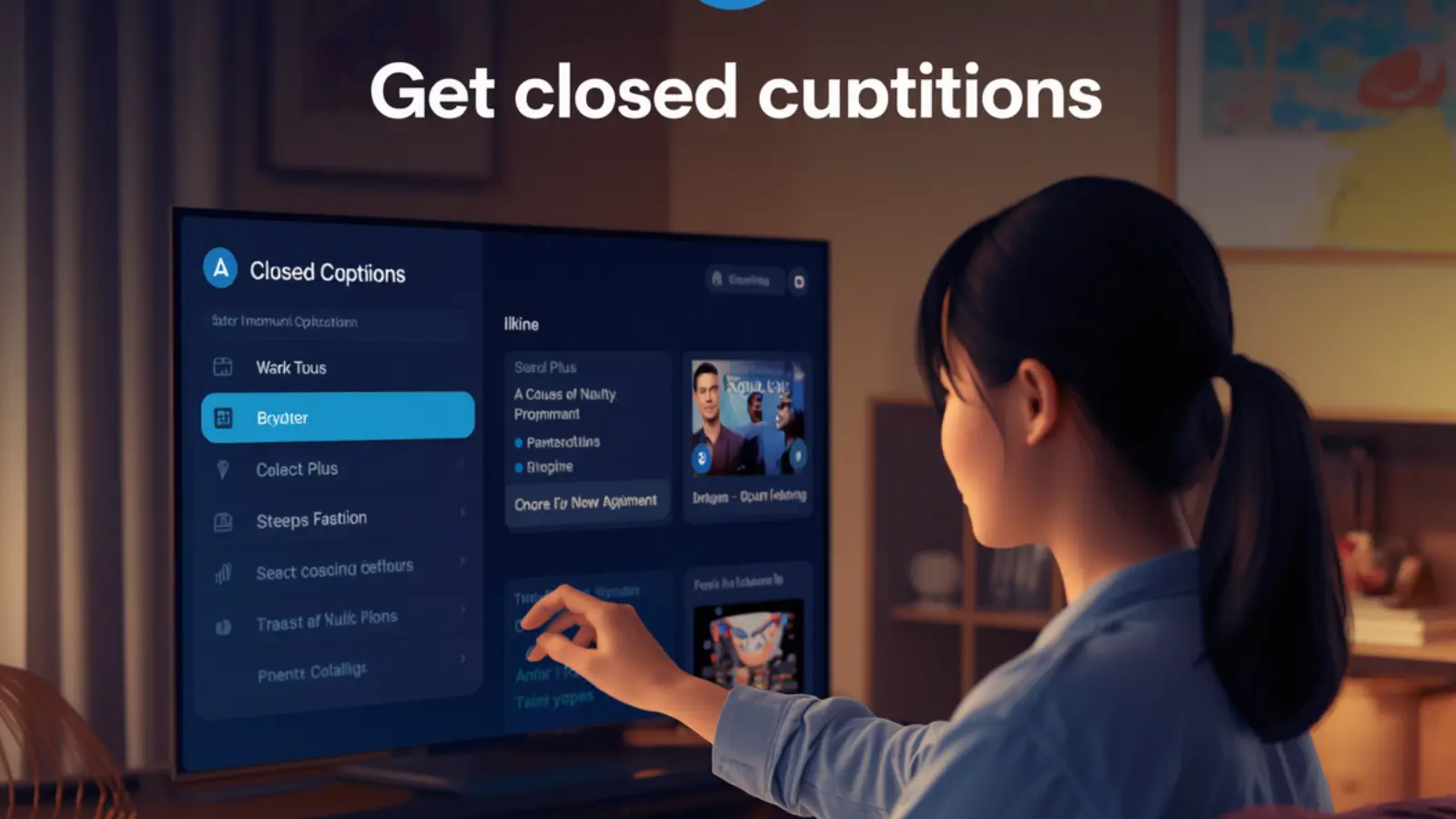
How to get closed caption on Paramount Plus means activating the built-in subtitle feature so dialogue, sound effects, and important audio appear as on-screen text while you stream movies, series, or live content.
This accessibility tool helps viewers follow along in noisy rooms, with hearing challenges, or when learning language nuances, delivering clearer understanding without changing the video itself.
Closed captions transform passive watching into an active, inclusive experience. Whether you stream on a phone during a commute, gather around the living-room TV, or catch up on a laptop, the process stays straightforward once you know where the controls live.
Below you’ll find twelve fresh angles that go beyond basic button-pushing. Each section delivers twelve practical, value-packed points so you can master captions, improve comprehension, and even turn favorite moments into shareable content that performs well on platforms where short-form video and text overlays drive visibility.
Capturing Every Spoken Nuance Without Missing a Beat 🎬
- Open the Paramount Plus app or website and start any title that supports subtitles.
- Look for the speech-bubble or “CC” icon that appears when you move the mouse or tap the screen.
- Select the icon and choose your preferred language track if multiple options appear.
- Confirm the captions lock in by watching the first few seconds of dialogue.
- Pause and restart the video if the text does not appear immediately; the player sometimes needs a quick refresh.
- Note that live sports or news may offer slightly delayed captions compared with on-demand episodes.
- Use captions to catch rapid-fire banter in comedy specials that otherwise fly by.
- Enable them during foreign-language films so you absorb both the original audio and the translation.
- Treat captions as a study aid when learning idioms or regional accents featured in the show.
- Share a short clipped scene with accurate captions to friends who struggle with audio quality.
- Observe how well-timed captions improve emotional impact during quiet dramatic moments.
- Keep the feature on by default for household members who rely on visual support every time they watch.
Mapping the Caption Controls Across Phone, Tablet, and Browser 📱
- On iOS, open the video player, tap the screen once, then select the CC button near the progress bar.
- On Android, the same CC icon sits in the lower control row; tap it and pick your language.
- Inside a web browser, hover near the bottom of the player window to reveal the full control bar.
- Click the gear or CC symbol and toggle the track on; some browsers remember the choice for future sessions.
- Rotate your tablet to landscape mode for larger text that is easier to read at a glance.
- Pinch-zoom is unavailable inside the native player, so rely on the built-in size options if offered.
- Clear the app cache if the icon refuses to respond after an update.
- Sign out and back in when captions fail to load on a newly installed device.
- Test the feature on both Wi-Fi and cellular data to confirm stability under different connections.
- Bookmark a frequently watched series so the player loads with your last caption preference.
- Use a Bluetooth keyboard on a tablet to navigate the menu faster if touch targets feel small.
- Screenshot the settings page once configured so you can recreate the exact setup on another device later.
Turning Living-Room TVs into Caption-Friendly Hubs 📺
- Launch Paramount Plus on your smart TV or streaming stick and start playback.
- Press the down or options button on the remote to summon the on-screen menu.
- Highlight the CC or Subtitles entry and press OK or Select.
- Choose the language and any available style if the menu offers customization.
- Confirm the text appears over the picture and adjust seating distance for comfortable reading.
- On Roku, look under the asterisk (*) button for quick caption access during playback.
- On Fire TV, the menu button usually reveals the subtitle toggle within two clicks.
- On Apple TV, swipe down on the remote touch surface to open the info panel containing CC.
- Restart the streaming device if the option is grayed out after a system update.
- Pair a voice remote and simply say “turn on closed captions” when the content is playing.
- Dim the room lights slightly so white or yellow caption text stands out against bright scenes.
- Create a household profile dedicated to caption-on viewing so every family member starts with the preferred setting.
Fine-Tuning Text Appearance for Maximum Clarity ✨
- Some Paramount Plus interfaces let you change caption color from white to yellow or cyan.
- Increase font size when watching from across a large room so letters remain legible.
- Add a semi-transparent background box behind the text to separate it from busy visuals.
- Switch to a high-contrast style when the scene contains snow, sand, or bright skies.
- Reduce opacity if the background box feels too heavy and distracts from the cinematography.
- Test different positions—bottom center versus bottom left—depending on where action occurs.
- Save preferred styles under your account so they travel with you across devices.
- Revert to default settings with one tap if an experimental look proves hard to read.
- Match caption color to the dominant palette of a particular series for a more immersive feel.
- Use larger text during late-night sessions when eyes are already fatigued.
- Disable fancy fonts if the platform offers them; simple sans-serif usually reads fastest.
- Document your ideal combination so you can restore it quickly after an app update resets preferences.
Solving Common Caption Glitches Before They Ruin the Episode 🔧
- Force-close the app and reopen it when captions refuse to appear.
- Check your internet speed; unstable connections can delay or drop the subtitle track.
- Update the Paramount Plus app to the latest version that often includes caption-fix patches.
- Restart your router if multiple devices suddenly lose subtitle support at the same time.
- Switch from Wi-Fi to mobile data momentarily to isolate whether the problem is network-related.
- Clear the app’s storage or cache through your device settings, then sign back in.
- Try a different title to determine whether the issue is content-specific or account-wide.
- Log out of all devices and log back into only the one you are using to reset session data.
- Contact Paramount Plus support with the exact title, timestamp, and device model for faster help.
- Temporarily disable any VPN that might interfere with regional subtitle availability.
- Reinstall the app as a last resort after backing up your watchlist.
- Note the time of day glitches occur; peak evening hours sometimes strain servers and affect caption delivery.
Using Captions to Deepen Story Immersion and Memory 🧠
- Read along during complex plot reveals so no whispered clue slips past.
- Pause on key lines and re-read the caption to lock important dialogue into memory.
- Notice sound-effect captions (door creaks, distant thunder) that enrich atmospheric storytelling.
- Catch character names spoken quickly in crowded scenes.
- Follow overlapping conversations in ensemble casts without losing track of who said what.
- Use captions as a reference when discussing an episode with friends later.
- Improve retention of technical jargon in science-fiction or medical dramas.
- Appreciate the rhythm of well-written dialogue by seeing the words land in time with the audio.
- Identify recurring motifs or catchphrases that become series trademarks.
- Revisit favorite monologues with captions on to study pacing and emphasis.
- Help younger viewers connect spoken words with their written forms.
- Turn caption reading into a light focus exercise that keeps attention from drifting during long episodes.
Bridging Accessibility Gaps for Every Viewer in the House ♿
- Activate captions automatically for any household member who is hard of hearing.
- Keep the feature enabled during family movie nights so no one has to ask for volume changes.
- Pair captions with headphones for mixed hearing-ability groups watching together.
- Use them in noisy environments such as open-plan living spaces or apartments with thin walls.
- Support language learners by displaying accurate text while native audio plays.
- Reduce the need to rewind repeatedly when someone misses a line.
- Create an inclusive viewing culture where asking for captions feels normal, not special.
- Check that children’s profiles also have captions available for age-appropriate content.
- Adjust text size so older relatives can read comfortably from their usual seats.
- Combine captions with descriptive audio tracks when both features are offered.
- Educate guests on how to toggle the setting themselves so they feel empowered.
- Celebrate the simple act of turning captions on as an everyday accessibility win.
Transforming Caption Moments into Shareable Social Sparks 📲
- Clip a perfectly captioned punchline and post it as a short reel that grabs attention in the first second.
- Overlay the same accurate text on Instagram Reels so viewers understand the joke even with sound off.
- Write a complementary caption under the Reel that expands on the moment and invites comments.
- Add relevant hashtags that describe the show, the emotion, and the accessibility angle to widen reach.
- Track how captioned clips often earn higher completion rates because meaning stays clear without audio.
- Notice improved engagement rate when text and visuals work together on silent autoplay feeds.
- Encourage followers to share their own captioned favorites, building community around the series.
- Use the clarity of official captions to avoid mis-transcribing dialogue that could confuse audiences.
- Experiment with different Reel lengths while keeping the essential captioned line front and center.
- Measure visibility gains by comparing captioned versus non-captioned versions of similar clips.
- Tag the official show account when appropriate so the post can gain extra algorithmic lift.
- Turn a single well-captioned scene into a multi-post series that keeps the conversation alive across days.
Building Consistent Caption Habits Across Your Streaming Routine 🔄
- Decide once that captions stay on for every new title you start.
- Create a mental checklist: open app, start play, confirm CC icon is active.
- Teach every household member the two-second toggle so the habit spreads.
- Set a monthly reminder to review caption preferences after major app updates.
- Keep a simple note in your phone of the exact menu path for each device you own.
- Reward the habit by noticing how much more you catch on rewatches.
- Pair caption activation with another routine action such as dimming the lights.
- Review your watch history occasionally to confirm captions were used on longer series.
- Share the habit with friends who complain about missing dialogue in crowded scenes.
- Treat caption readiness as part of accessibility hygiene, similar to adjusting brightness.
- Celebrate small wins when a previously confusing scene suddenly makes perfect sense.
- Let the consistent practice free mental energy for enjoying the story instead of straining to hear.
Exploring Caption Behavior on Live Events and Specials 🏈
- Expect a short delay between spoken words and on-screen text during live sports or awards shows.
- Verify that the CC option remains available even when the stream switches between cameras.
- Use captions to follow rapid commentary that can be hard to catch over crowd noise.
- Note that some live events offer limited language choices compared with on-demand libraries.
- Refresh the stream if captions freeze while the video continues.
- Position yourself closer to the screen for live events where text may be smaller.
- Combine captions with a second-screen app that provides additional stats or context.
- Appreciate how captions capture crowd reactions and referee announcements that matter.
- Test caption performance during both daytime and prime-time live slots.
- Record a short personal clip of a captioned live moment for later social sharing.
- Observe whether captions improve or degrade when the stream quality drops temporarily.
- Keep patience high; live captioning is inherently more complex than pre-recorded tracks.
Pairing Captions with Multi-Device and Multi-Profile Setups 👨👩👧👦
- Enable captions once on a primary profile so secondary profiles can inherit or override the setting.
- Create a dedicated “Caption Comfort” profile for viewers who always want text on.
- Switch profiles mid-session if different family members prefer different languages.
- Sync progress across phone and TV so a captioned episode continues seamlessly.
- Limit the number of simultaneous streams if bandwidth begins to affect subtitle delivery.
- Assign kids’ profiles their own caption defaults that match reading levels.
- Use the web player on a laptop while the main TV runs a different captioned title.
- Log caption preferences under each profile name so they travel with the account.
- Review profile settings after adding a new device to the household.
- Educate guests on how to select the correct profile before they start watching.
- Monitor data usage on mobile when captions and high-resolution video run together.
- Celebrate the flexibility that lets every viewer enjoy the same content on their own terms.
Measuring Personal Wins and Refining Your Caption Game Over Time 📈
- Keep a short mental log of episodes where captions revealed something you would have missed.
- Notice reduced rewinding once captions become your default.
- Track how often friends comment that they finally understood a dense plot thanks to your tip.
- Observe higher enjoyment scores on rewatches when every line is crystal clear.
- Experiment with different text styles and record which combination feels most natural after a full season.
- Share before-and-after stories of viewing sessions with and without captions.
- Note any drop in eye strain during long binge sessions when text replaces constant volume adjustments.
- Celebrate accessibility milestones such as introducing a relative to their first fully captioned series.
- Adjust habits seasonally—larger text in winter when evenings feel longer and darker.
- Use captioned clips as conversation starters that spark deeper discussions about the show.
- Refine your social-sharing approach by testing which captioned moments generate the strongest engagement rate.
- Treat ongoing improvement as part of becoming a more intentional, inclusive viewer who extracts maximum value from every stream.
Final Thought
Closed captions on Paramount Plus are more than a convenience; they are a reliable bridge to clearer stories, shared enjoyment, and content that travels well beyond the screen.
Master the controls on every device, customize the look until it feels effortless, troubleshoot quickly when glitches appear, and turn standout moments into captioned clips that perform on Instagram Reels and similar platforms.
The result is richer viewing at home and stronger visibility when you share. Start with one device today, keep captions on by default, and notice how much more of the story you actually catch. Then pass the knowledge along—because the best streaming experiences are the ones everyone can follow.

Nova Blake creates trendy, fast-paced captions inspired by viral social media culture. Her writing connects strongly with Gen-Z audiences. She focuses on relatability, humor, and current trends.